
In TimeSheeta, a timesheet is one worker’s week on one job, and its status says where it is on the way to QuickBooks. It starts as Draft while hours are entered. It becomes Submitted when the foreman submits it, Approved when the office approves it, and In QuickBooks once the Web Connector has sent it. On the way, it can be Sent back to be fixed, be Being corrected by an approver, or be refused by QuickBooks.
The approval process, step by step
- A foreman enters the hours. The week is a Draft.
- The foreman presses Submit. The week is Submitted, and the hours become locked. The foreman can press Recall to take the week back until it is approved.
- At the office an approver either:
- presses Approve, and the week is Approved;
- presses Send back with a reason, and it is Sent back to the foreman; or
- presses Edit, and the week’s hours are Being corrected by them.
- The Web Connector sends approved hours on its next run, and the hours arrive In QuickBooks. If QuickBooks turns hours down, the week is Refused or Partly in QuickBooks.
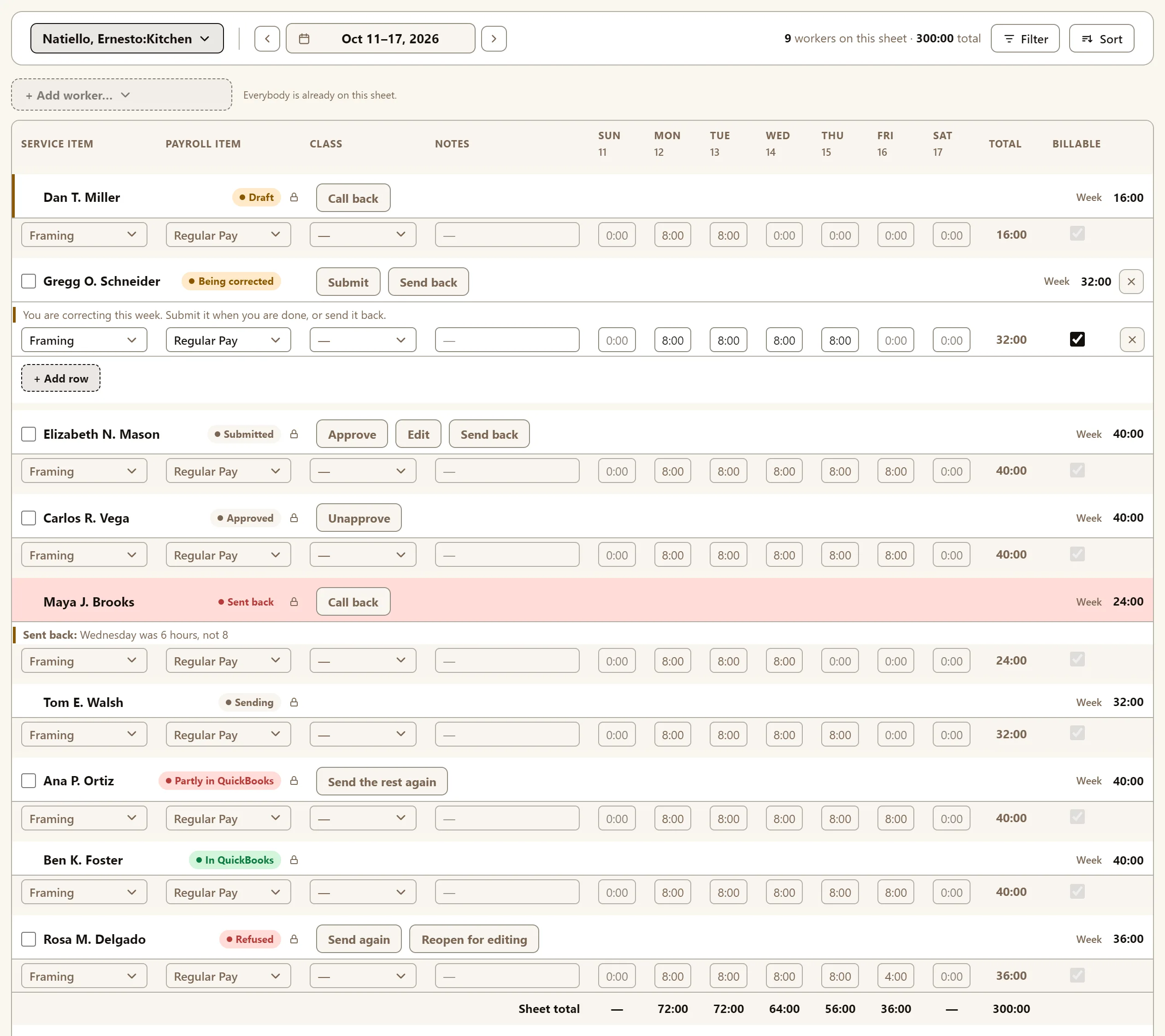
What each status means
| Status | What it means | Who can change the hours | What can be done next |
|---|---|---|---|
| Draft | Hours are being entered, and the week hasn’t been submitted. | Whoever entered the hours. | Submit. An approver can Call back a week someone else started, to correct it. |
| Submitted | Waiting for approval. | Nobody, until it is recalled or an approver presses Edit. | An approver: Approve, Edit or Send back. Whoever submitted it: Recall. |
| Being corrected | An approver is correcting it. | Only that approver. | The approver can Submit or Send back. Another approver can Take over. |
| Sent back | Returned to be fixed. The reason is shown on the week. | Whoever enters hours. | Submit again. An approver can Call back. |
| Approved | Approved, and waiting for the next QuickBooks sync. | Nobody. | Unapprove returns the entry to Draft, and the process repeats. |
| Sending | Some hours are in QuickBooks, and the rest go on the next sync. | Nobody. | Nothing; the next sync finishes it. |
| In QuickBooks | In QuickBooks. Hours in TimeSheeta are locked. | Nobody. | Corrections are made in QuickBooks. |
| Refused | QuickBooks refused the hours. Its message is on the QuickBooks tab. | Nobody. | Send again after fixing it in QuickBooks, or Reopen for editing. |
| Partly in QuickBooks | Some hours are in QuickBooks and some were refused. | Nobody. | Send the rest again after fixing it in QuickBooks. |
A locked week shows a padlock beside its status. Hover over it to see why it is locked.
Which weeks can be edited?
Only three:
- Draft and Sent back weeks, by the people who enter hours.
- A Being corrected week, by the approver correcting it.
Every other status is locked. To change a week that is submitted or approved, an approver uses Edit or Unapprove.
What do I do with a Refused week?
Open the QuickBooks tab and look under Hours QuickBooks refused, which quotes QuickBooks’ own reason. Then:
- If the problem is in QuickBooks, such as an employee’s payroll setup, fix it there and press Send again. The hours go on the next Web Connector run.
- If the hours themselves are wrong, press Reopen for editing. The week returns to Draft, to be corrected and approved again.
The reasons QuickBooks gives most often are in QuickBooks errors.
Can a week be locked by date?
Yes, by two company settings:
- Entry deadline. Once a week’s deadline passes, a foreman can still submit it, but can no longer add or change its hours, or recall it. A week sent back to its foreman opens again until they resubmit it.
- Payroll lock. Nothing on or before the Locked through date can be entered, submitted, approved or sent, by anybody.
Both are explained in Company settings.