
To approve time in TimeSheeta, open the job’s week on the Time entry tab, or find it on the Jobs tab and press Open week. Approved hours go to QuickBooks the next time the Web Connector runs. To return a week to its foreman instead, press Send back and say what needs fixing.
Approving needs a role with the approve permission, such as the built-in Administrator role. Foremen can’t approve, and unless your company allows self-approval in Settings, nobody can approve a week they entered or submitted.
Find the weeks waiting for approval
There are two ways to find and approve time.
From the Jobs tab. It lists every job with hours for approval in the current week, with those needing attention at the top:
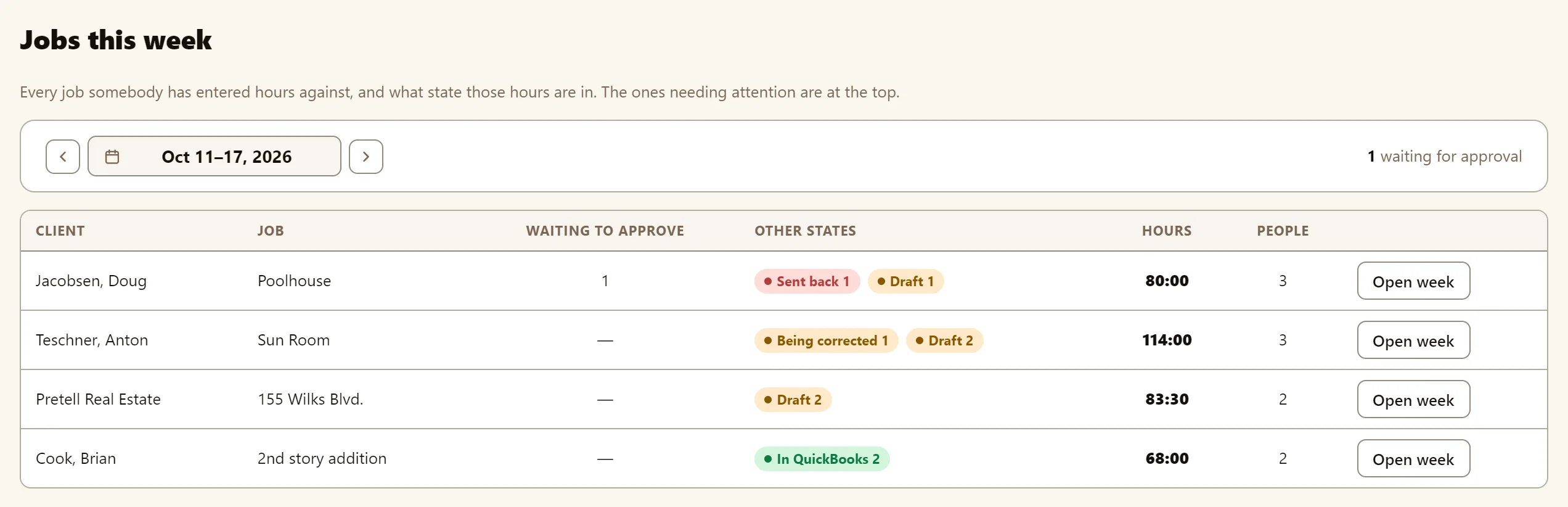
Open week takes you to that job’s timesheet for the week, where you approve or edit time entries.
From the timesheet you can individually approve, send back or edit time entries.
Approve a week
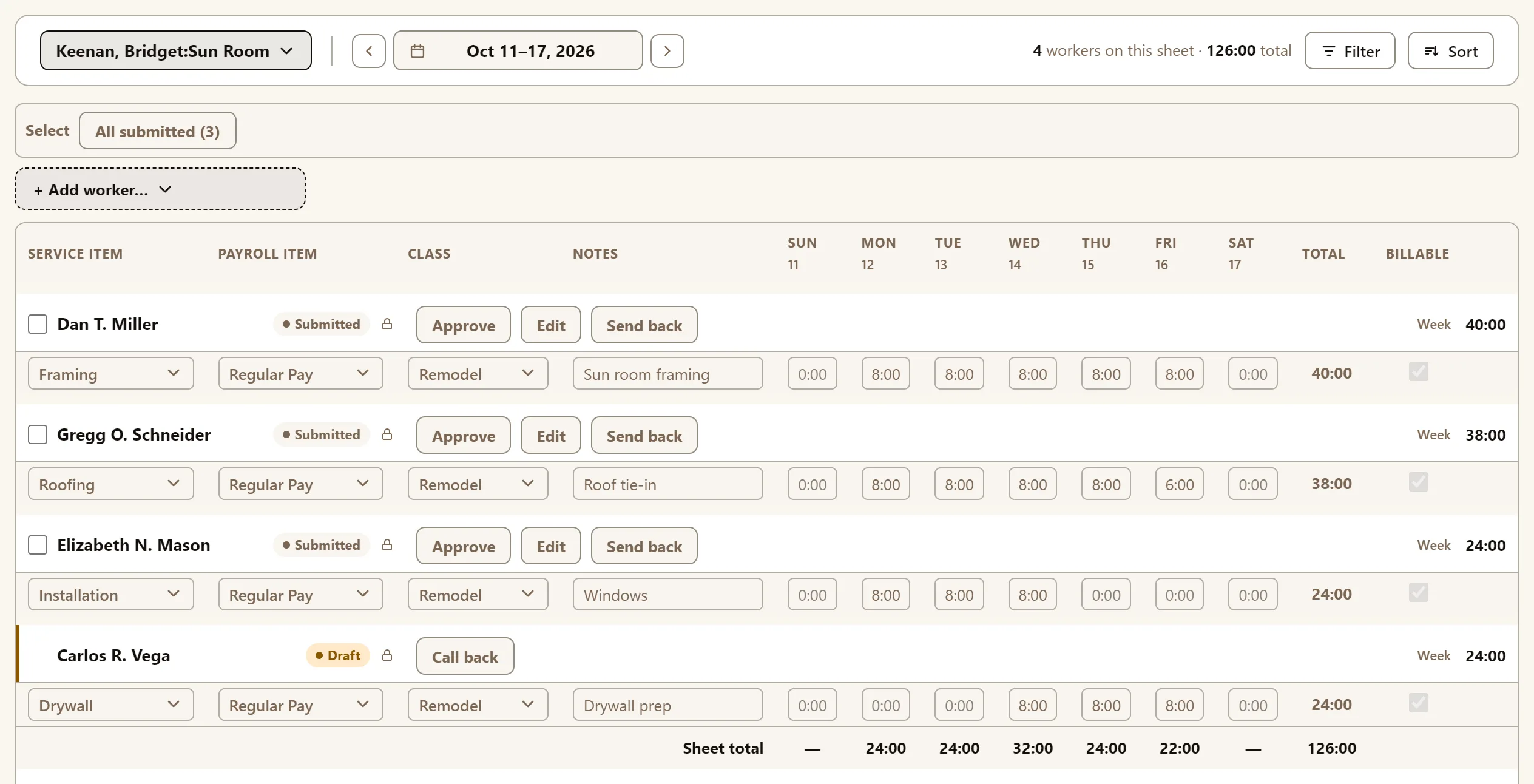
A submitted week shows Approve, Edit and Send back beside the worker’s name. Check the hours, then press Approve. The status changes to Approved.
Approve several weeks at once
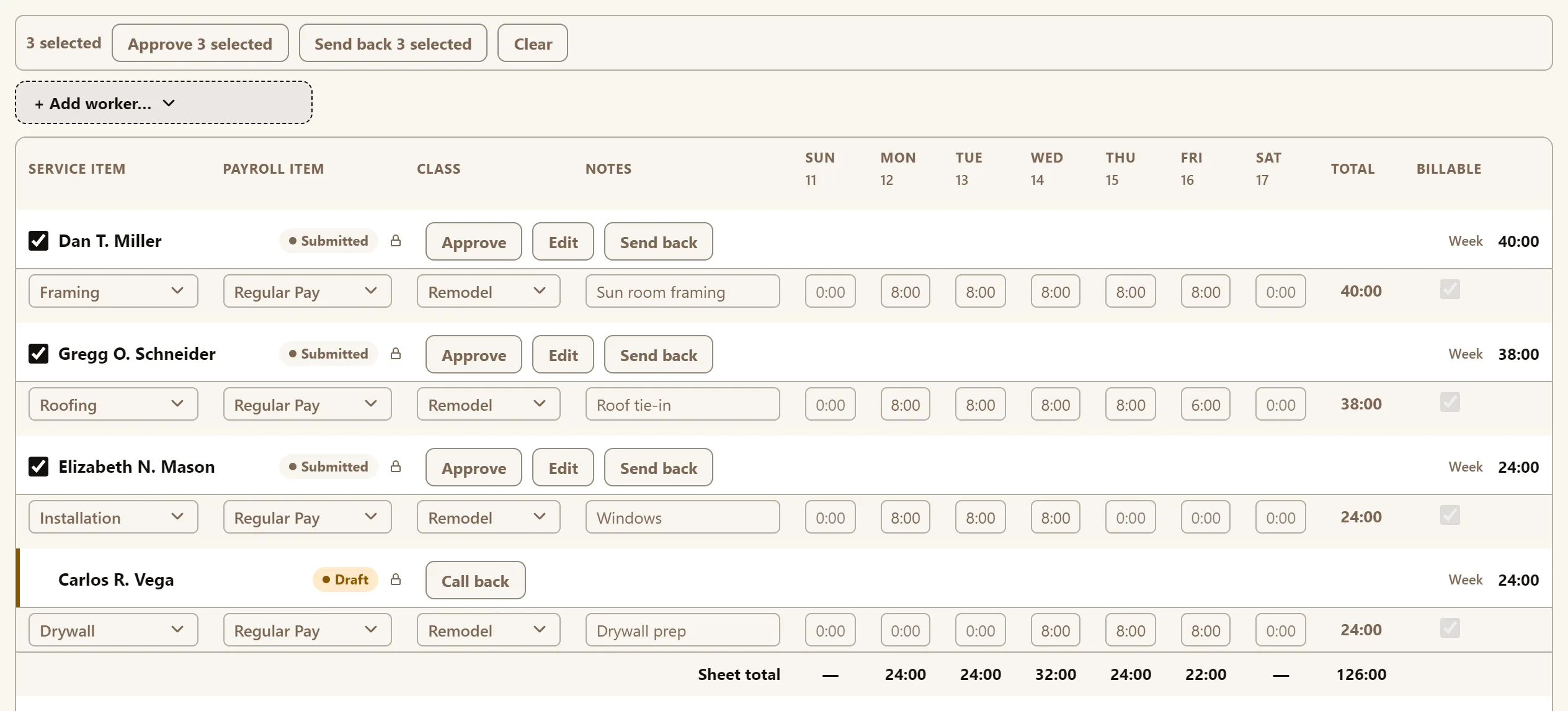
- Press All submitted (3) next to Select above the sheet, or tick workers one at a time.
- Press Approve 3 selected.
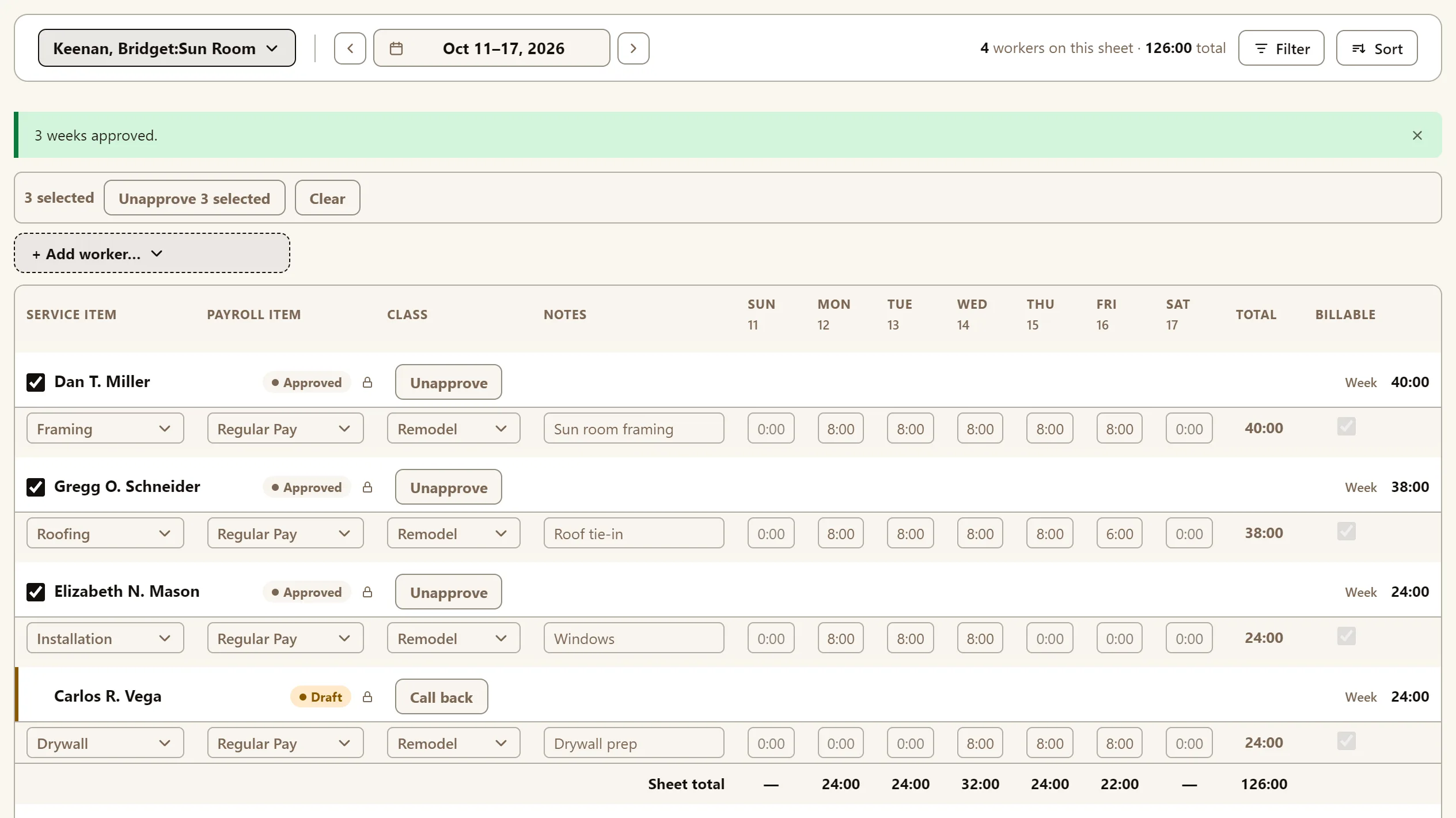
TimeSheeta reports how many time entries went through, such as “3 weeks approved.” If any entries are refused each entry with its corresponding error is listed.
Send a week back to be fixed
- Press Send back beside the worker’s name.
- Type a reason for sending back in What needs fixing?
- Press Send back.

The week goes back to its foreman as Sent back, with the reason shown. Once the entry is fixed, it can be resubmitted. To send back several weeks at once, tick them and press Send back 3 selected.
Correct a week yourself
With the correct permissions you can edit submitted entries yourself, without having to send them back to be corrected by people in the field. Press Edit on a submitted week to make the change yourself. The week becomes Being corrected, and only you can change it. Finish by pressing Submit, or Send back to return it to the foreman.
A week you correct and submit counts as yours, so another approver approves it unless your company allows self-approval. Another approver can also press Take over to finish a correction you started.
What happens after approval?
Approved hours are sent to QuickBooks automatically, the next time the Web Connector runs, and the status becomes In QuickBooks. If QuickBooks turns hours down, the entries on the given week show Refused or Partly in QuickBooks instead.
Until hours are sent to QuickBooks, you can press Unapprove to return the week’s entries to Draft. Once an entry is in QuickBooks, it is locked in TimeSheeta and no more changes for that entry can be made. Corrections must be made in QuickBooks.
Why can’t I approve a week?
- It’s your own week. Unless your company allows self-approval, Approve doesn’t appear on a week you entered or submitted. Ask another approver, or turn on Allow a person to approve hours they entered in Company settings.
- Payroll is closed. The week is on or before your company’s payroll lock date.
- A class or note is missing. Your company requires one before a week can be approved. The rows that need it are highlighted; fill them in, then approve.
- Somebody is correcting the week. It can be approved once they submit it.