
To enter time in TimeSheeta, pick the job and the week on the Time entry tab, add each worker with + Add worker…, choose their work items, and enter their hours for each day. There is no Save button: every change is saved automatically. When a worker’s week is complete, press Submit beside their name to send it for approval.
Step 1: Pick the job
On the Time entry tab, open Select a job…. You can type part of the job or client’s name in the search box to narrow the list.
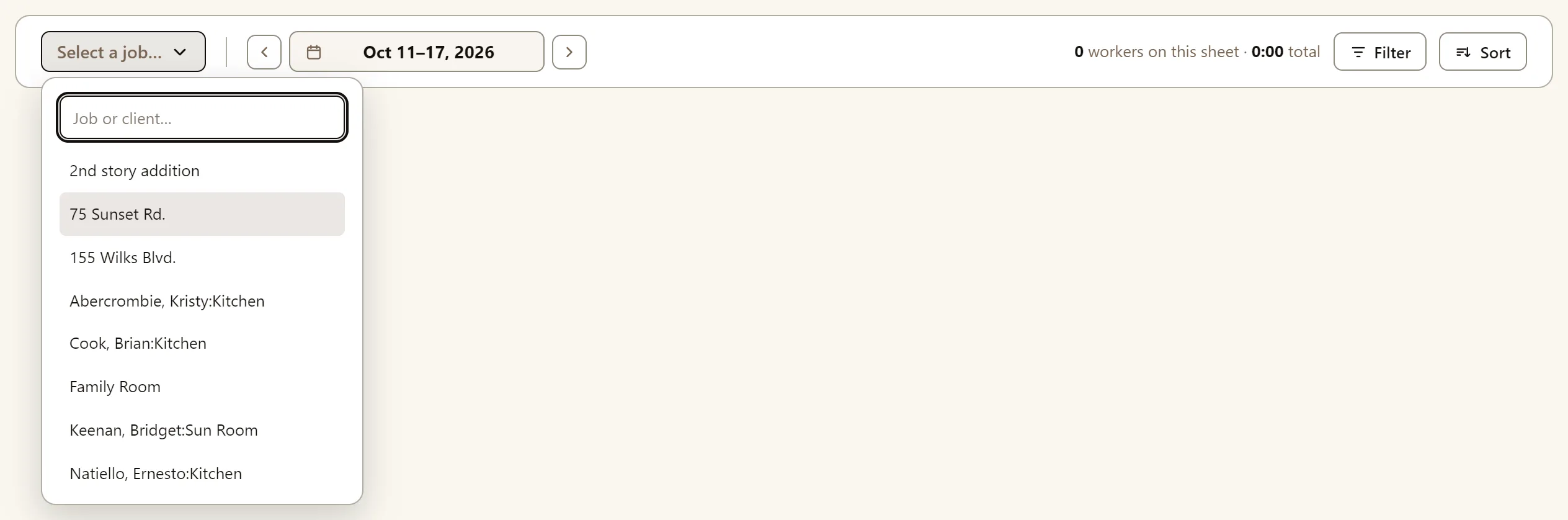
Clients & Jobs come from your QuickBooks company file. If a job is missing, check that it is active in QuickBooks.
Step 2: Pick the week
TimeSheeta opens on the current week. Use the arrows on either side of the date to step back or forward a week, or open the calendar and pick the week to enter time. Weeks in TimeSheeta start on the same day as they do in QuickBooks.
Step 3: Add your workers
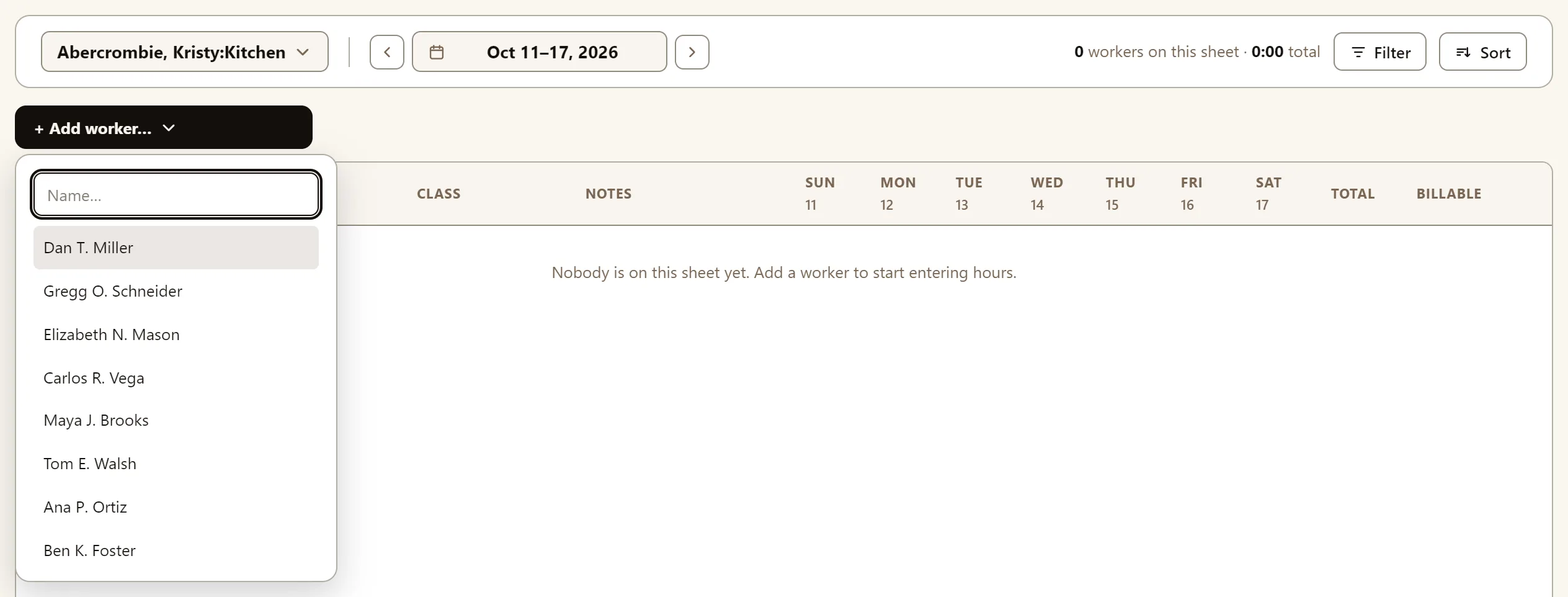
Open + Add worker…. The list includes everyone on your QuickBooks employee list (who hasn’t been added to this sheet yet). Each added worker starts with one empty row and the status Draft.
Step 4: Choose the items for each row
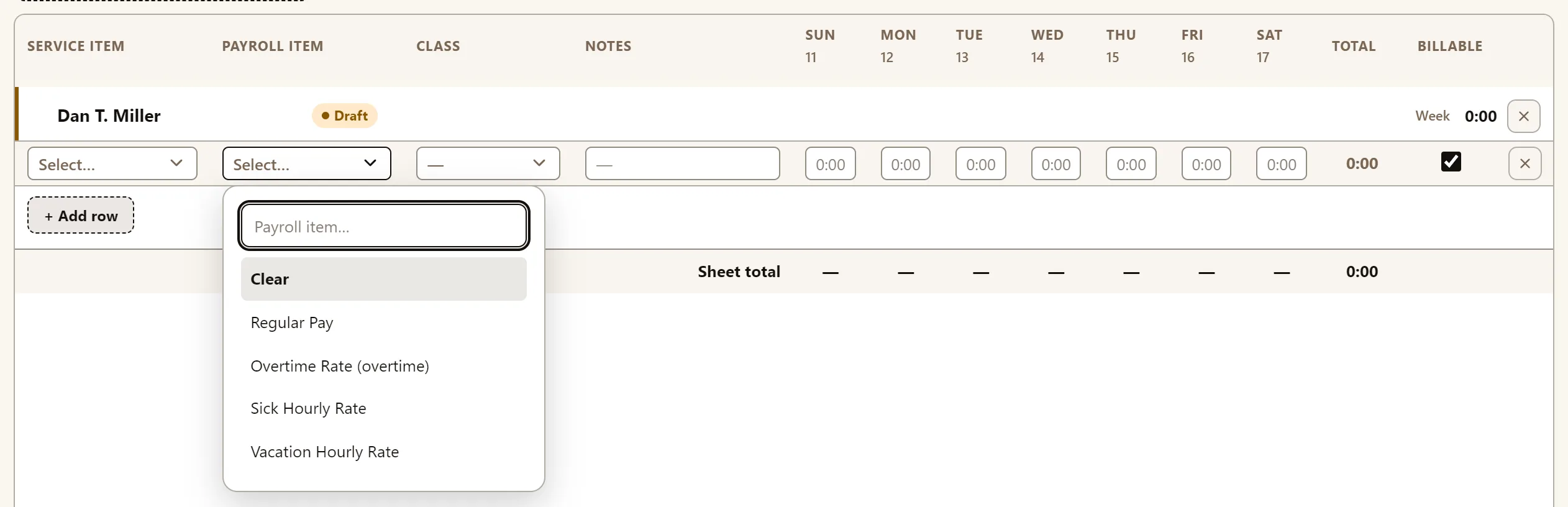
Each row needs a Service Item and a Payroll Item:
- Payroll Item lists only the pay items that employee is set up with in QuickBooks.
- Service Item is the item QuickBooks job-costs the hours against.
- Class appears if your company uses class tracking in QuickBooks.
- Notes is free text, for important details.
- Billable is selected by default. Un-select for hours that aren’t billable.
Step 5: Type the hours
Type each day’s hours in its box. You can type 8, 8:30 or 8.5. 8:30 and 8.5 both
mean eight and a half hours, and totals show as hours and minutes. To clear a day, delete the
time entered.
TimeSheeta doesn’t calculate overtime. To calculate overtime, create a separate payroll line item in your QuickBooks company. Click + Add row under the worker and choose the overtime payroll item on the new row.
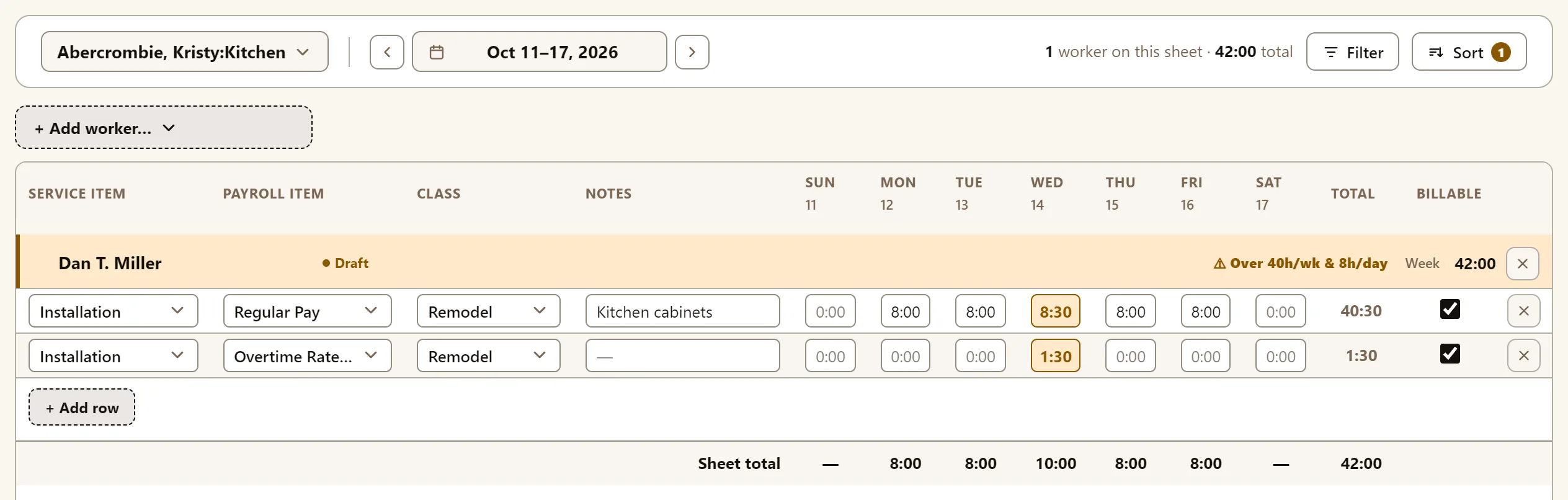
As a helpful indicator, more than 8 hours in a day or 40 in a week is highlighted, with a warning such as Over 40h/wk & 8h/day beside the worker’s name.
Step 6: Submit each worker’s week
When a worker’s week is complete, press Submit beside their name. The entry status changes from Draft to Submitted, and is ready for approval.
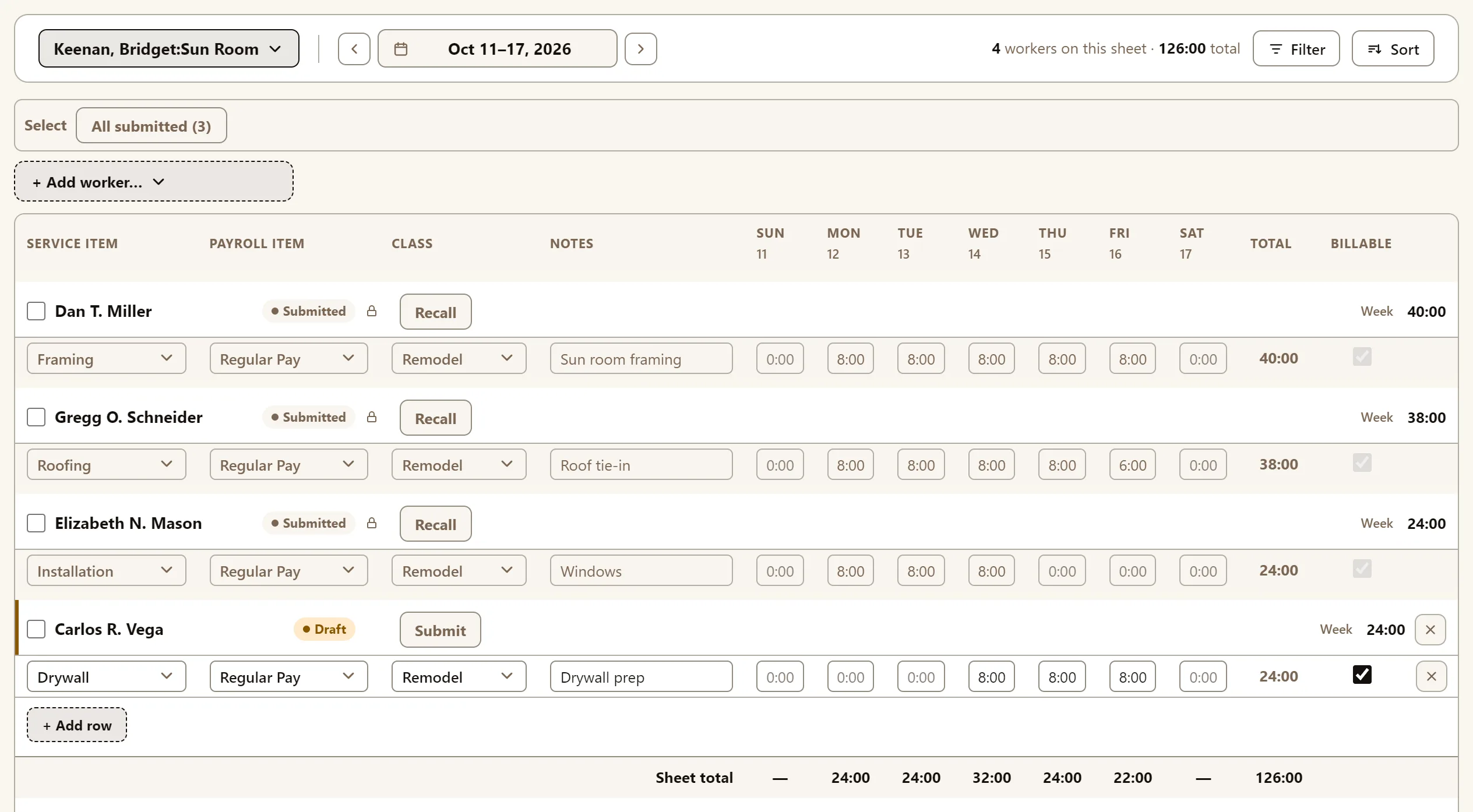
- To submit several weeks at once, use the Select option at the top of the sheet, such as All draft (3), then Submit 3 selected.
- Submitted too soon? Press Recall while the week still shows Submitted. The entry becomes editable again and can be resubmitted.
- Submit doesn’t appear until the week has reached TimeSheeta’s servers, (usually a moment after you start typing). If you have no signal, the submit button will appear once you regain signal and your hours have uploaded.
Does TimeSheeta save automatically?
Yes. Hours save when you enter them, and everything else saves as you change it. Your hours are kept on your device first and uploaded in the background. The header at the top of the screen shows how many are waiting to upload, and Sync now uploads them straight away.
Can I enter time with no signal?
Yes, once TimeSheeta is open. Hours you type with no signal stay on your device and upload when your signal comes back. Make sure you open TimeSheeta while you still have signal: it needs a connection to load your jobs and items.
Can I enter time on my phone?
Yes. TimeSheeta works on a mobile phone, tablet, or laptop. On smaller screen sizes the tabs move behind the ☰ menu, and the sheet scrolls sideways.
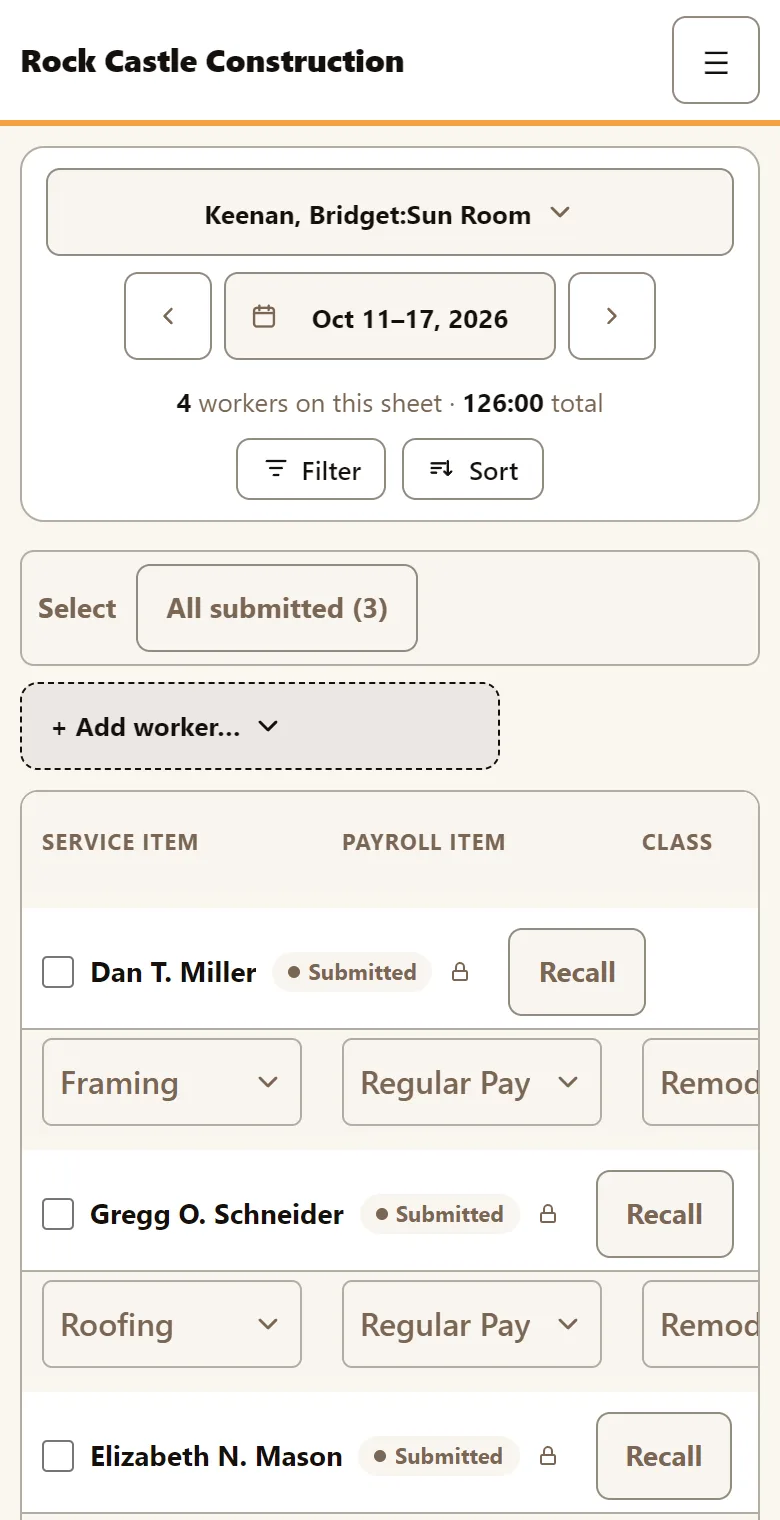
On an iPhone, you can add TimeSheeta to your Home Screen (in Safari, Share then Add to Home Screen) and enter hours there.
Can I copy last week’s crew?
Yes. Copy last week adds last week’s workers and rows for this job, with the same items. Hours and notes aren’t copied. It is only offered when this device has last week’s entries for the job.
What does “Row 2 duplicates row 1” mean?
Two rows for the same worker with the same service item, payroll item, class and billable setting would be one line in QuickBooks, so TimeSheeta won’t send them. Change or remove one of the rows. Until then, those hours stay on your device and are not submitted.
Why can’t I change a week’s hours?
A week can only be changed while it is Draft, Sent back, or being corrected by you. Once it is submitted, approved, or in QuickBooks it is locked. Your company can also close weeks with an entry deadline or a payroll lock. See Timesheet statuses and the approval process.