
To create a TimeSheeta account for an employee of your company, open the People tab and press Add somebody. Enter their email address and full name, tick a role such as Foreman, and press Create sign-in. TimeSheeta shows their new password once. You are responsible for sharing it with them; there is no invitation email.
Only people whose role can manage users, such as the built-in Administrator role, see the People tab. Sign-ins are for the people who enter or approve hours. Crew members who have time entered on their behalf never need to log in.
Step by step
-
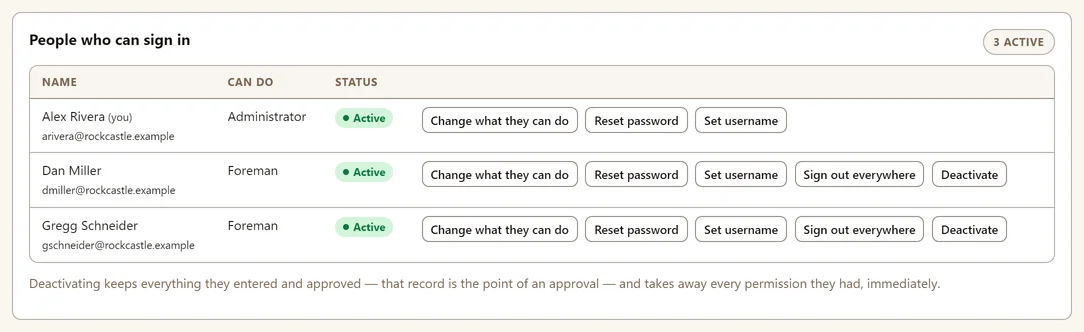
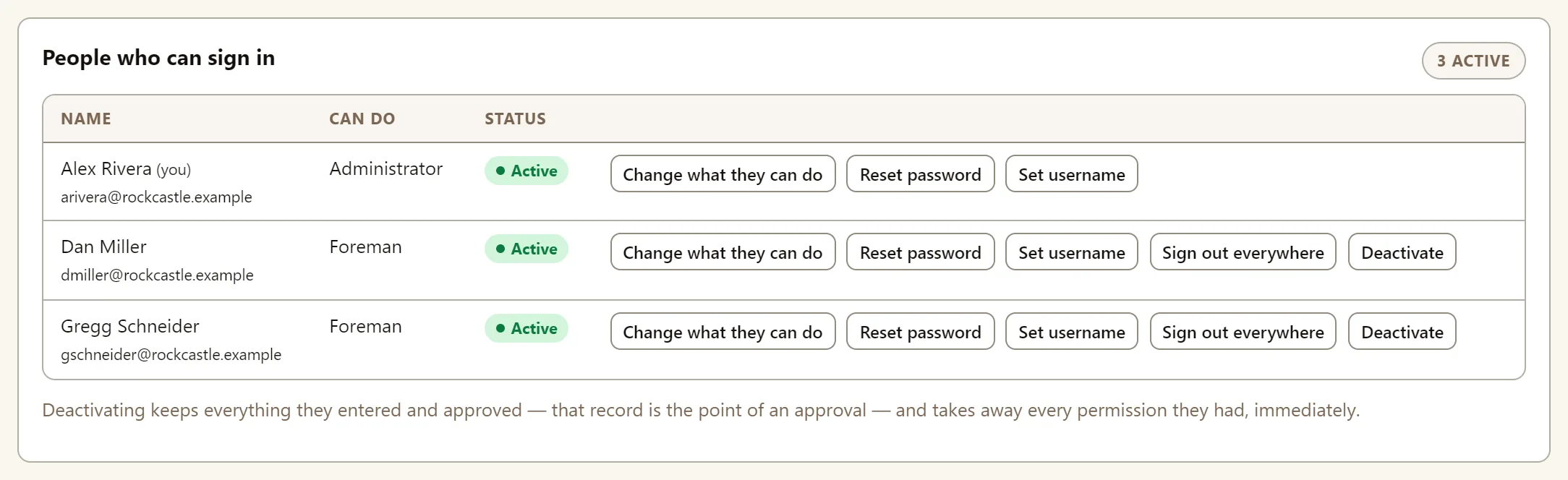
Open the People tab. It lists everyone who can sign in, with their roles and status.
-
Press Add somebody, below the list.
-
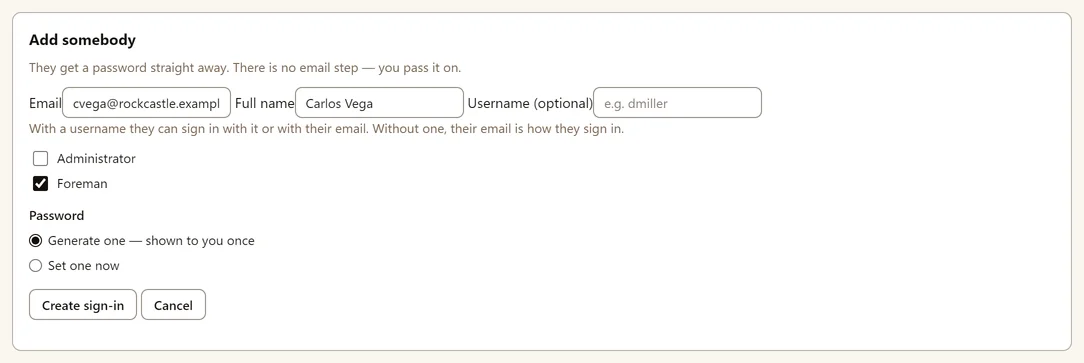
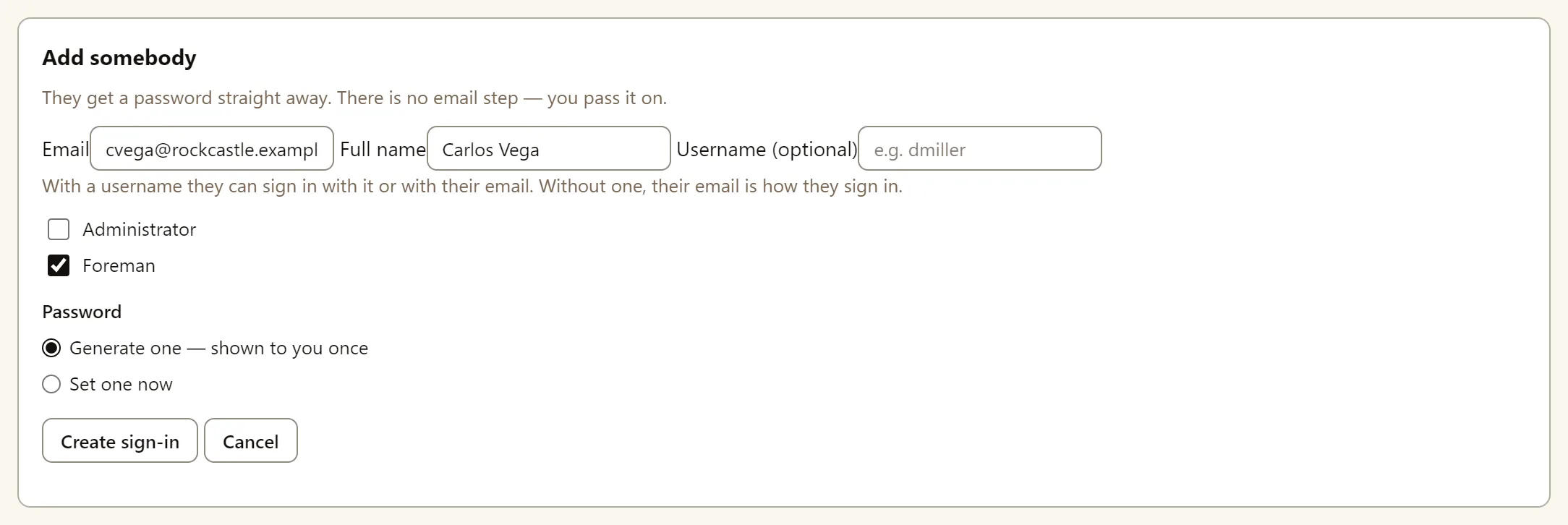
Fill in an Email and their Full name.
-
Add a username, if you like. With one, they can sign in with the username or their email. Without one, they sign in with their email.
-
Tick at least one role. Tick Foreman for someone who enters and submits hours, and Administrator for full access. Without a role, they would sign in to an empty app.
-
Choose the password. Leave Generate one — shown to you once selected, or choose Set one now and type one of at least 12 characters.
-
Press Create sign-in.
-
Pass the password on. If TimeSheeta generated the password, it is shown once, under New sign-in for their name. Send it to them, then press I have sent it.

The password is shown only once. Nobody can read it back later, here or anywhere else.

They sign in at your company’s TimeSheeta address. See Finding your company’s TimeSheeta address.
Rules for emails, usernames and passwords
- Email must be unique within your company and is not case sensitive.
- Username:
- 3 to 32 characters, using letters, digits, dots, hyphens and underscores, and never
@. - It must start with a letter or a digit.
- It isn’t case-sensitive.
- It must be unique within your company. Deactivated people keep theirs.
- 3 to 32 characters, using letters, digits, dots, hyphens and underscores, and never
- Password: at least 12 characters.
- People can’t change their own password yet. If someone needs a new password, an administrator will need to reset it for them. See How to reset someone’s TimeSheeta password.
Change what someone can do
Press Change what they can do on their row, tick or untick roles, and press Save. You can’t remove your own ability to manage users; another administrator has to do that.
What each role allows is explained in Roles and permissions.
Deactivate someone who has left
Press Deactivate on their row. They can no longer sign in, and everything they entered and approved stays on record. Reactivate lets them back in.
A change to someone’s access takes effect on their next action, and their tabs change the next time they reload or sign in. You can’t deactivate yourself, or the last person who can manage users.
Sign someone out of every device
To sign somebody out without deactivating them, for example when their phone is lost, press Sign out everywhere on their row. Their password stays the same. See How to reset someone’s TimeSheeta password.