
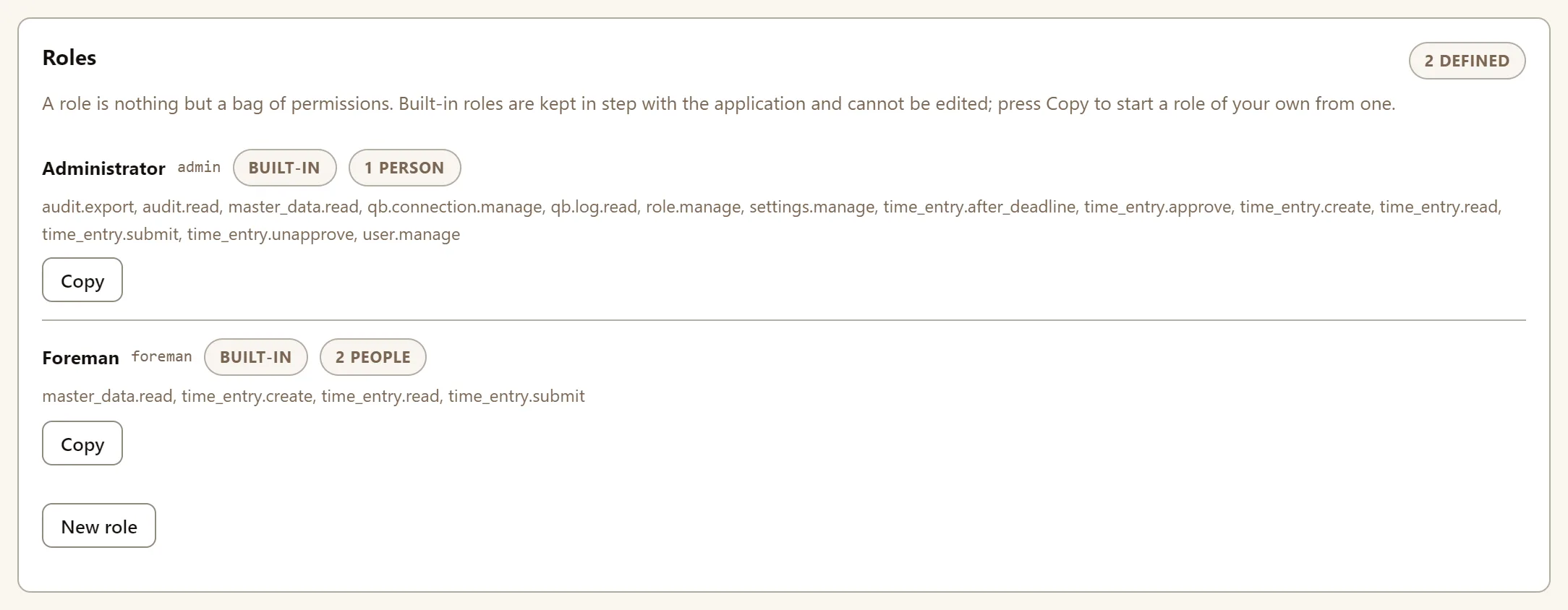
A role in TimeSheeta is a set of permissions which determines the actions the user can take in TimeSheeta. By default, each user has one or more roles. TimeSheeta comes with two built-in roles:
- Foreman enters and submits hours.
- Administrator can do everything, including approving hours, managing people and changing company settings.
For a different mix, such as an office clerk who approves time but doesn’t manage people, create a custom role on the People tab: copy one of the built-in roles with Copy, or start from nothing with New role.
The two built-in roles
| Role | What it can do | Tabs it sees |
|---|---|---|
Foreman (foreman) | See timesheets, enter hours, and submit weeks (or recalls them before they are approved). Hours approval is not permitted. | Time entry, Jobs, Review |
Administrator (admin) | Everything: entering, approving and unapproving hours, setting up the QuickBooks connection, people and roles, viewing the activity log and company settings. | All seven: Time entry, Jobs, Review, QuickBooks, People, Activity and Settings |
Built-in roles can’t be edited or deleted. To change a default role, copy it into a role of your own (below).
What each permission allows
The Roles section and the role form show each permission by its key.
| Permission | What it allows |
|---|---|
time_entry.read | See timesheets and entered hours, and the Jobs and Review tabs. |
time_entry.create | Enter and change hours. |
time_entry.submit | Submit a week for approval, and recall one you submitted before it is approved. |
time_entry.after_deadline | Enter and change hours after your company’s entry deadline has closed a week. |
time_entry.approve | Approve weeks. It also allows Send back, Edit, Take over, Call back and sending refused hours again. |
time_entry.unapprove | Return an approved week to Draft before it is sent, and reopen a refused one. |
master_data.read | Load the jobs, employees and items imported from QuickBooks. Anyone who enters time needs it, or the job and item lists are empty. |
qb.connection.manage | The QuickBooks tab: the Web Connector set-up, its file, and a fresh import. |
qb.log.read | The QuickBooks tab’s session log and refused hours. Only useful together with qb.connection.manage, which opens the tab. |
user.manage | The People tab: add people, change what they can do, reset passwords, deactivate. |
role.manage | Create, edit and delete roles. |
audit.read | The Activity tab: who signed in, approved or sent back a week, or changed what somebody can do. It doesn’t show who changed individual hours. |
audit.export | Download the activity log as a spreadsheet (CSV). Each download is recorded. |
settings.manage | The Settings tab: the time zone, the entry deadline, the payroll lock and the other company settings. |
How to create a custom role
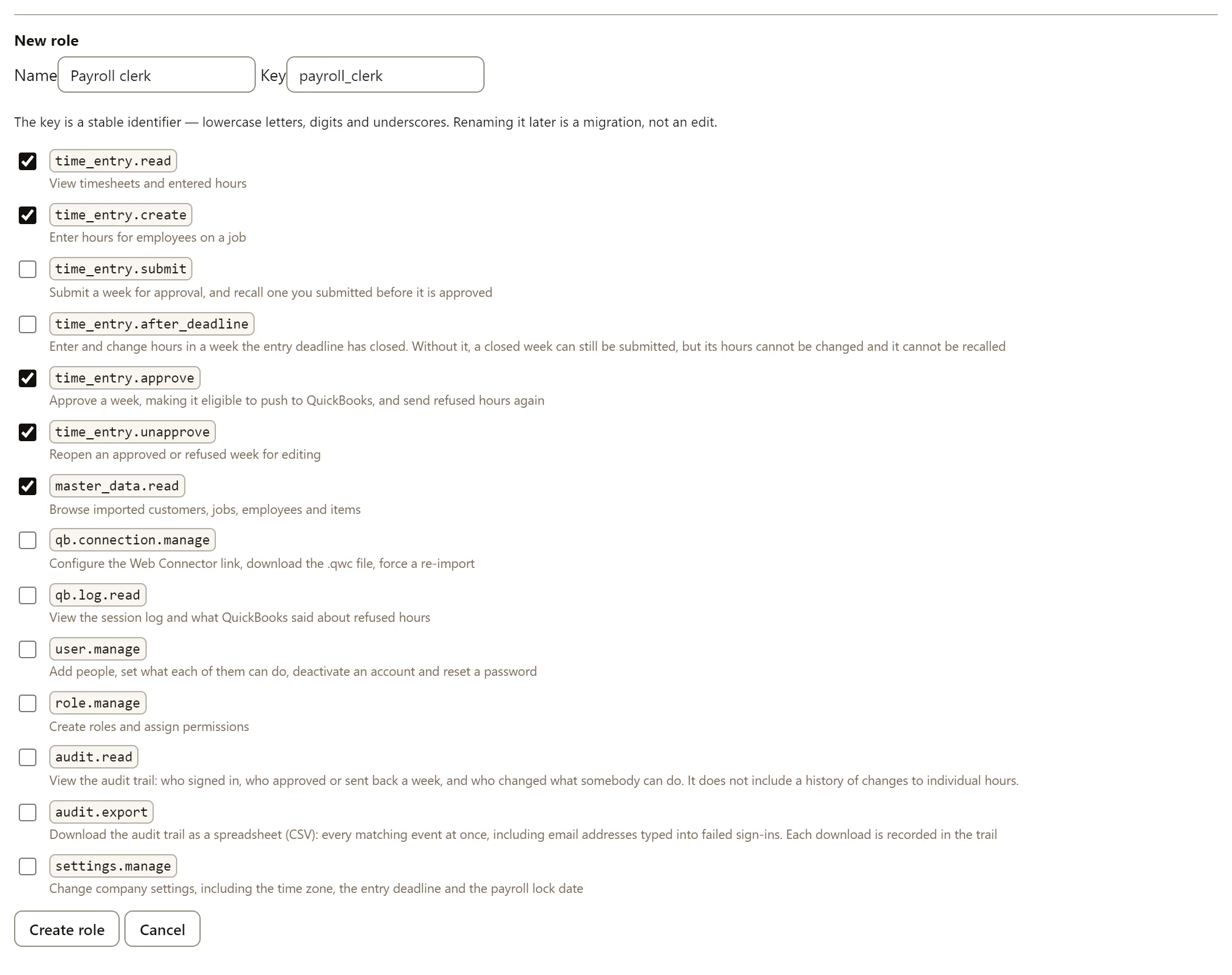
- Open the People tab and press New role, under Roles.
- Enter a Name, such as “Payroll clerk”.
- Enter a Key, such as
payroll_clerk. It is 2 to 32 lowercase letters, digits and underscores, starting with a letter, and no other role in your company can have it, including the built-inadminandforeman. Choose it carefully: it can’t be renamed later. - Tick the permissions the role should have.
- Press Create role.
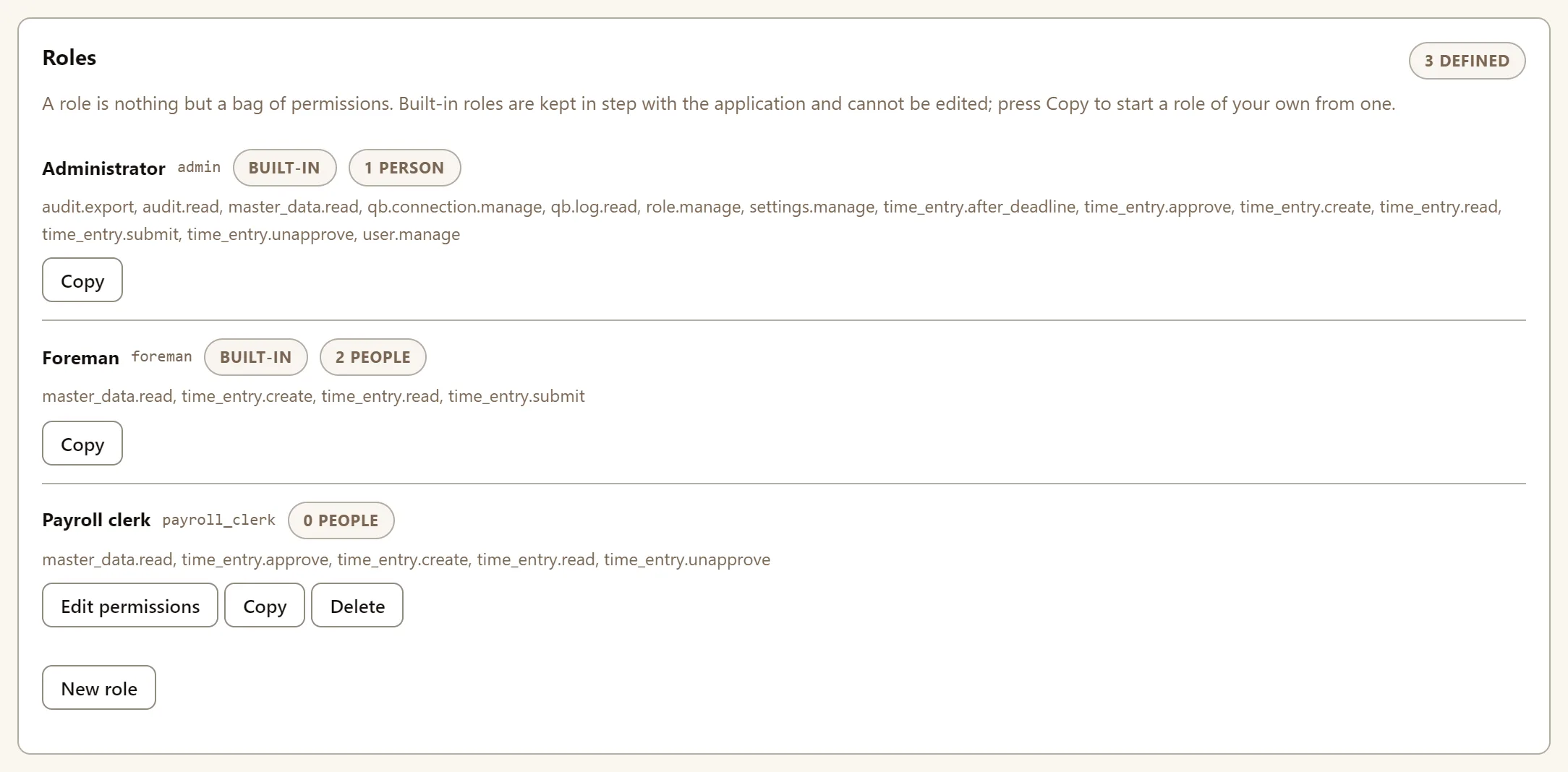
The new role appears under Roles, with Edit permissions and Delete:
To give someone the role, press Change what they can do on their row on the People tab. See How to add people to TimeSheeta.
You can only grant permissions you hold yourself. Any others are greyed out.
How to copy a role
The quickest way to make a role that is nearly the same as another, such as a foreman who can also approve hours:
- On the People tab, press Copy on the role to start from. Every role has it, the built-in ones included.
- The New role form opens, filled in from that role: its name with “(copy)” after it, a
key such as
foreman_copy, and the same permissions. - Change the name and key, tick or untick permissions, and press Create role.
If the role has permissions you don’t hold yourself, they are left out of the copy, and the form lists them.
How to change or delete a custom role
- Change it: press Edit permissions, change the ticks, and press Save.
- Delete it: press Delete and confirm. TimeSheeta won’t delete a role while anybody has it, so change those people’s roles first.
A change takes effect on each person’s next action. They see their new tabs the next time they reload or sign in.
Can I lock everyone out by mistake?
No. TimeSheeta always keeps at least one active person who can manage users. It won’t let you:
- lock yourself out.
- remove your own ability to manage users.